Browse
Tabs and the sidebar
Vertical tabs, groups, folders, pins, favorites, split view and the command palette.
The sidebar
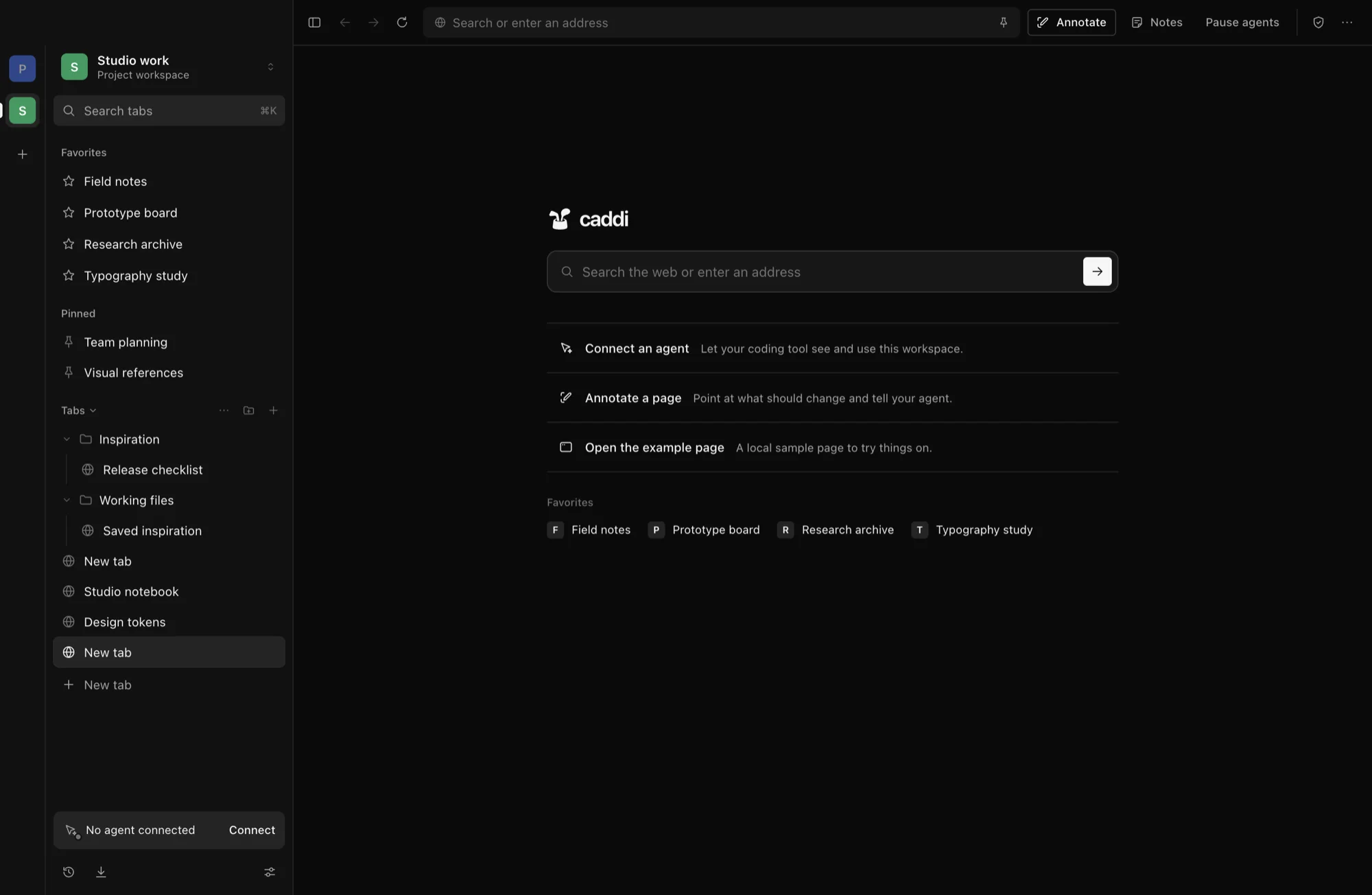
Down the left edge, the workspace rail shows every open workspace and a + for a new one. Beside it, from top to bottom: the workspace menu, tab search, favorites, pinned tabs, then your tabs in groups and folders. The agent status and the history, downloads and settings buttons sit at the bottom.
Organizing tabs
- Groups are named, colored sets of tabs inside a workspace.
- Folders hold tabs inside a group and can be nested.
- Pinned tabs stay at the top of the sidebar.
- Favorites are the pages you want one click away, shown above everything else and on the new tab page.
The command palette
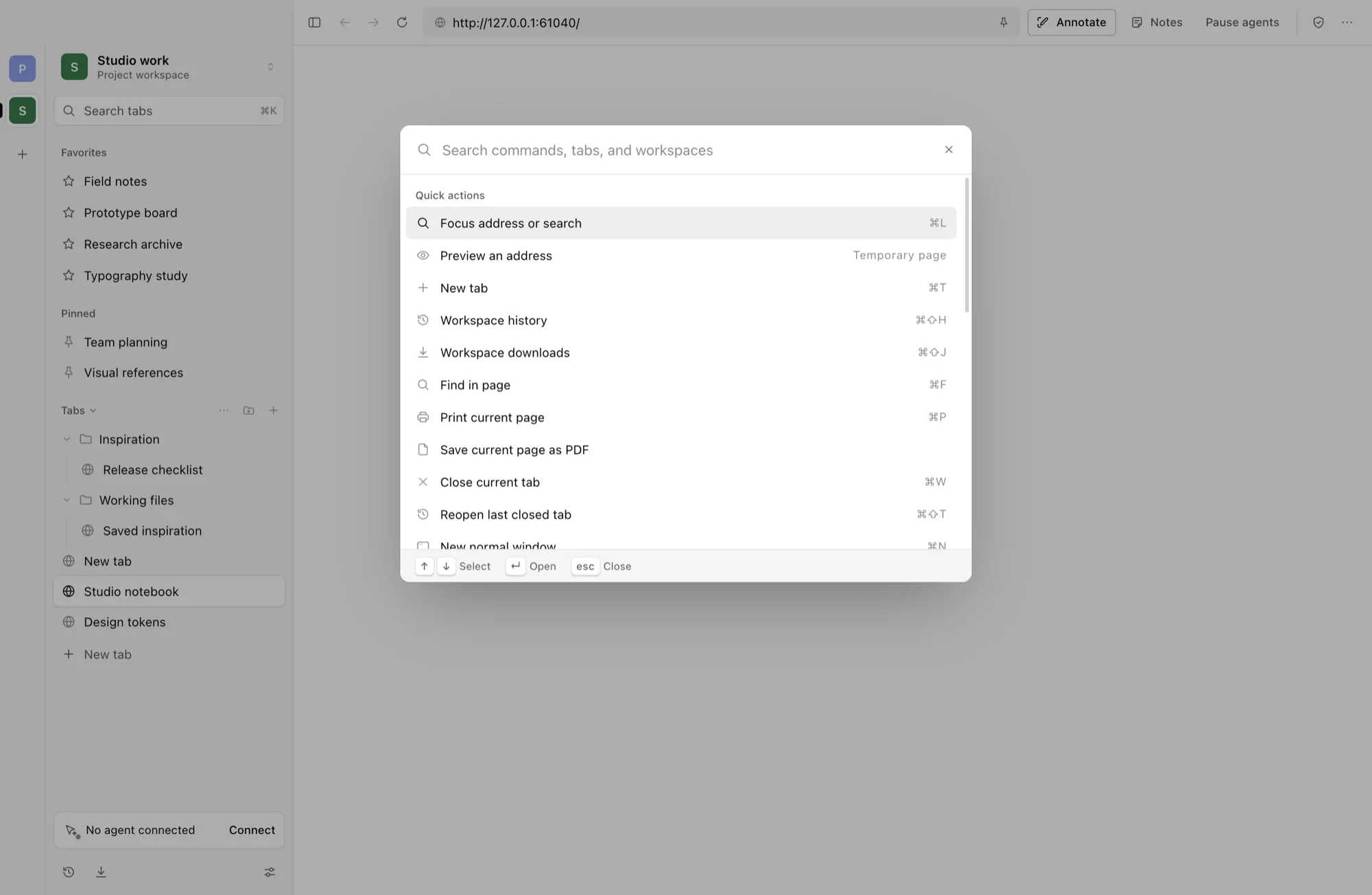
Press ⌘ K to search commands, tabs and workspaces. Use the arrow keys to move, Return to open and Escape to close.
Working with pages
- Split view places two tabs from the same workspace side by side.
- Find in page, zoom, print and save as PDF are in the page menu and the command palette.
- Preview an address opens a temporary page without adding a tab.
- Reopen closed tab brings back the last tab you closed.