Features
Everything Caddi does.
The full list, written from the app’s code, all of it in the 0.1.5 download. What is not built yet is at the bottom of the page.
01
Browser use
Any agent that speaks MCP can drive a page on the sites you approve, and you can watch it.
Browser use in detailA cursor with the agent’s name
Before each action, an arrow labelled with the agent’s name glides to the target and the action happens when it arrives. Clicks show a short ripple. It takes no input from you.
Who is driving, and Take over
While an agent holds control, the toolbar says “Claude Code is driving” with Take over, which ends its control at once. Using the page yourself does the same.
Click, type and keys
Click an element, fill a field in one step or type key by key, and press keys from a fixed list such as Enter, Escape, Tab, the arrows and Meta+A. No clipboard, browser or system shortcuts.
Hover, choose, drag and scroll
Open hover menus, choose an option in a select, drag with real mouse events, scroll by an amount or bring an element into view.
Wait instead of guessing
An agent can wait for a page to load, for some text or for an element to appear, for up to 15 seconds.
Fuller page structure
Observation reports checked, disabled, expanded and selected state, reads same-origin frames and open shadow roots, and can filter and page through long pages.
Screenshots, if you allow them
A separate option when you approve an agent, off by default. Password and other private fields and every embedded frame are blanked first. If they move during capture, nothing is returned.
Control that renews
Acting needs the workspace’s input lease, up to 30 seconds at a time. Each action renews it, never past five minutes. Only one agent holds a workspace at once.
Agents can ask for you
A blocked agent can ask for your help with a login or a review, without taking window focus.
02
Live
Talk and point at the same time. Each sentence goes to your agent with what you pointed at, and the agent answers on the page.
Live in detailPoint and talk
Press Live or ⇧⌘L, choose the agent, then talk while you move the pointer. Words like “this” and “here” are tied to the element under the pointer when you said them.
Delivered as you speak
Each finished sentence goes to the agent through caddi_live_wait, a call it repeats in a loop. A typed field in the Live panel does the same without a microphone.
The agent answers on the page
With caddi_live_reply the agent says what it understood in one line beside the Live button and outlines the element it means, with its name, so you can correct it before it changes any code.
Pointing inside things
For an image, a canvas, a video or a large panel, the agent is also told where inside it you pointed, such as “about 70% across, 30% down”.
Nothing lost when you stop
Stop finishes the sentence you are saying, transcribes what is queued, and keeps any instruction the agent has not picked up yet for its next call.
The page keeps its width
What Caddi heard and the agent’s reply show in the toolbar. The Live panel, with everything said and a field to type, opens when you want it. It follows each instruction through Heard, Sent, Received and Received · agent is back.
Speech stays on your Mac
Speech is transcribed locally by whisper.cpp, included in the download, and the audio is deleted after. Quiet speech is evened out, and the words on the page help it spell names right.
It ends when you leave
Live stops on Stop, Pause agents, switching tab or workspace, leaving the agent’s sites, revoking or disconnecting the agent, or locking the Mac. Not in private windows or personal workspaces.
Private fields stay private
Pointing at a password or other private field reports only “private”. Form values are never read.
03
Annotate and Sent
Notes pinned to the element, in a form your agent can act on, and a list that says whether it got them.
Annotate and Sent in detail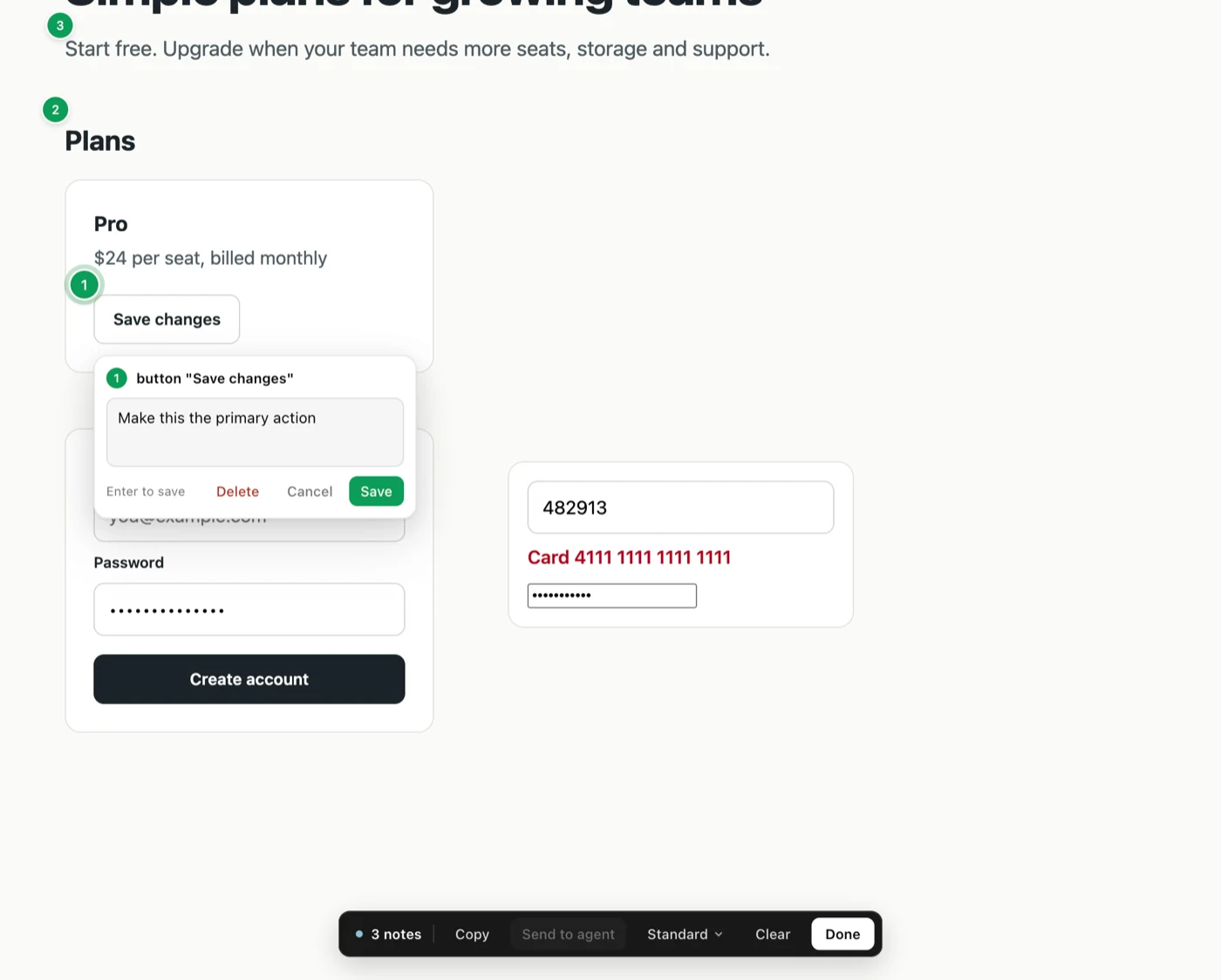
Click to mark
Turn on Annotate, hover to see what will be picked, and click. Each element gets a numbered marker. Drag to mark a region.
A note per marker
Write what should change. Press Return to save, edit or delete it later from the marker.
The Annotate bar
A count of your notes with Copy, Send, a detail level, Clear and Done at the bottom of the page. After you send, it says “Sent · waiting for …”, then “Received by …”.
Sent to agents
The count beside Annotate opens one list of everything sent from the workspace, newest first, from Annotate and Live. Each item says Draft, Sent and waiting, Received with when, or that the agent disconnected before reading.
Notes pushed to a waiting agent
An agent waiting on caddi_live_wait gets your notes the moment you send them. Agents can also fetch them by reference. A note is never delivered twice.
Open, copy, send again
From the list you can open the page, copy a note as Markdown, send it again to the same or another agent, view what was sent, or delete it before the agent has it.
Markdown that names things
Each note carries the element’s name such as button “Save changes”, a short path to search the code for, and selected text if you had any.
Source file and component
When the page exposes them, as development builds of common frameworks do, the note includes the source file, line and component chain.
Masked screenshots
Before a screenshot goes with a note, password, payment and other private fields are covered. If masking cannot be confirmed, no image is sent.
Keyboard support
Start with ⌘⇧A, move between markers and the bar with the keyboard, and leave with Escape. Picking pauses agent input in that workspace.
04
Page reading
Agents can read what a page says, not only its controls. So can you.
A page as Markdown
caddi_read_page returns headings, paragraphs, lists, code, links, images with alt text and tables. By default it keeps the main content and drops navigation, footers, sidebars and cookie banners. Long pages come in parts.
Structured data
caddi_extract returns links, tables, the heading outline, page metadata, or form fields with their labels and types, never their values.
What is never read
Anything typed into a form, private and password fields, logins Caddi filled, hidden text, and frames from other sites.
You can see it
The toolbar says “Claude Code is reading this page” for a few seconds after each read. Reading needs only view access and the same approval as everything else.
Copy page as Markdown
In the page menu and the command palette, for you, with no agent involved. It uses the same reader, so you see what an agent would get.
One page at a time
Caddi reads pages already open in a granted tab. It never fetches a URL for an agent, crawls, or reads PDF text.
05
Board
A board for each project, for what you and your agent are looking at. Your agent can read it and add to it.
Board in detailOne per project
Every project workspace has a Board at the top of its sidebar. Open it and the page steps aside; go to a tab or press Escape to put it away.
Notes, pages and pictures
Add a note, pin the page you were on as a link, snap a picture of it, paste a screenshot with ⌘V, or drop images and links onto it. Drag cards to arrange them. New cards never cover old ones.
Your agent reads it
caddi_board lists the cards: note text, links, image captions and where each came from. caddi_board_image shows the agent one image card as a picture.
And adds to it
With control, caddi_board_note lets the agent add a note for you, marked “From Claude Code”, so you can see what it found or what it needs from you.
Point at a card in Live
Live works on the Board too: point at a card, or a spot on an image, while you talk, and the agent’s reply outlines the card.
Kept on your Mac
Saved with the workspace, up to 200 cards. Images up to 8 MB, PNG, JPEG, GIF or WebP, checked by their bytes. Agents never see another workspace’s board, and Pause agents blocks it.
06
Vault
The logins each project needs, in your Mac’s keychain. An agent you allow can use one without ever seeing the password.
Vault in detailIn the keychain
Passwords go to your Mac’s login keychain. Caddi’s own file holds only the site, username, label and settings. Nothing syncs.
The key in the toolbar
Opens the Vault for the current workspace, with a dot when the page has a saved login. ⇧⌘U fills it, lets you choose, or opens the Vault. Logins are grouped by site and searchable.
Agents sign in without the password
You tick “Can use saved logins” when approving the agent, the login’s own switch is on, the site is one the agent was granted, and you confirm its first use. Then it can ask Caddi to fill the form.
It cannot read it back
A filled field stays hidden from agents everywhere: reading, typing, keys, screenshots, Live and Annotate. If the page turns it into plain text, Caddi empties it.
A record of every access
Activity lists every use and every agent attempt: who, which login, when, and whether it was filled, waiting for you, or refused and why. Never a password, never exported, cleared only by you.
Which agents could use it
Each login lists the agents connected to its workspace and whether each could use it now, or what stands in the way.
Offer to save when you sign in
After you sign in by hand, Caddi offers to save or update the login, never for an agent’s sign-in and never in a private window. You choose where it goes: this workspace only, or all of them. Until you answer, the password waits in memory for up to two minutes, then it is wiped.
Import, reviewed first
Import a CSV exported from 1Password, Apple Passwords, Bitwarden, Dashlane, LastPass, or Chrome, Edge and Brave. You see what will be imported and what will be skipped before anything is stored. Imported logins start with agents off.
Per workspace
Each workspace has its own logins. Share one with another workspace; the agent switch is per login, so it applies in each.
Show and Copy need you
Show and Copy ask macOS for Touch ID or your account password every time. Copy clears the clipboard after a minute.
07
Workspaces
A separate browser profile for every project, inside one window.
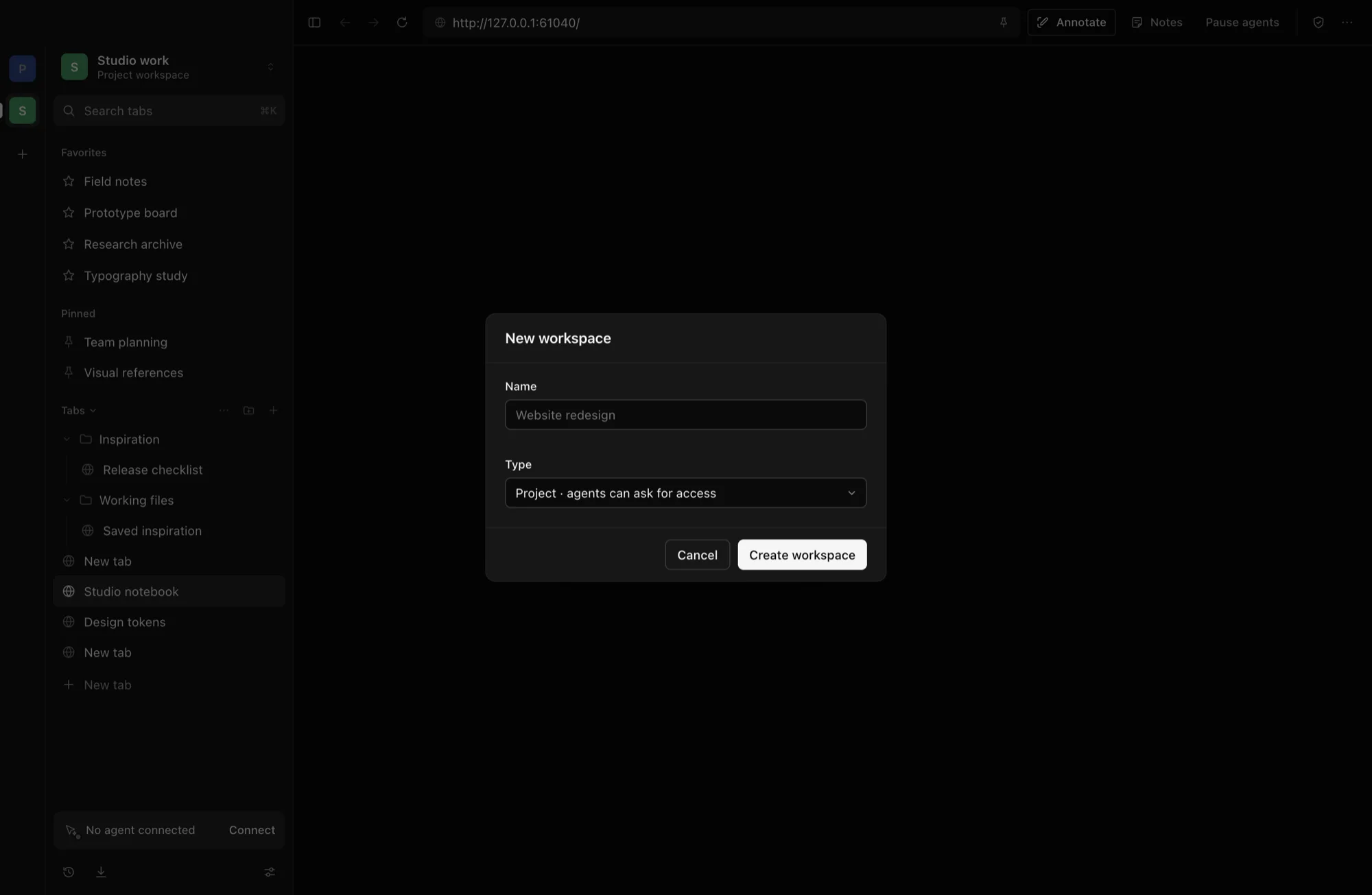
Workspace rail
Every open workspace sits on the left edge of the sidebar as a badge. One click switches, and + makes a new one.
Project workspaces
Each one has its own cookies, local storage, IndexedDB, service workers and cache. Being signed in to a site in one workspace does not sign you in to it in another.
Personal workspaces
For your own browsing. They are human-only: the access layer refuses to share them with any agent. Camera and microphone requests from sites are only available here.
Private windows
A throwaway in-memory session with no disk cache. Its tabs are not saved to history, and it is never visible to agents. Everything is destroyed when the window closes.
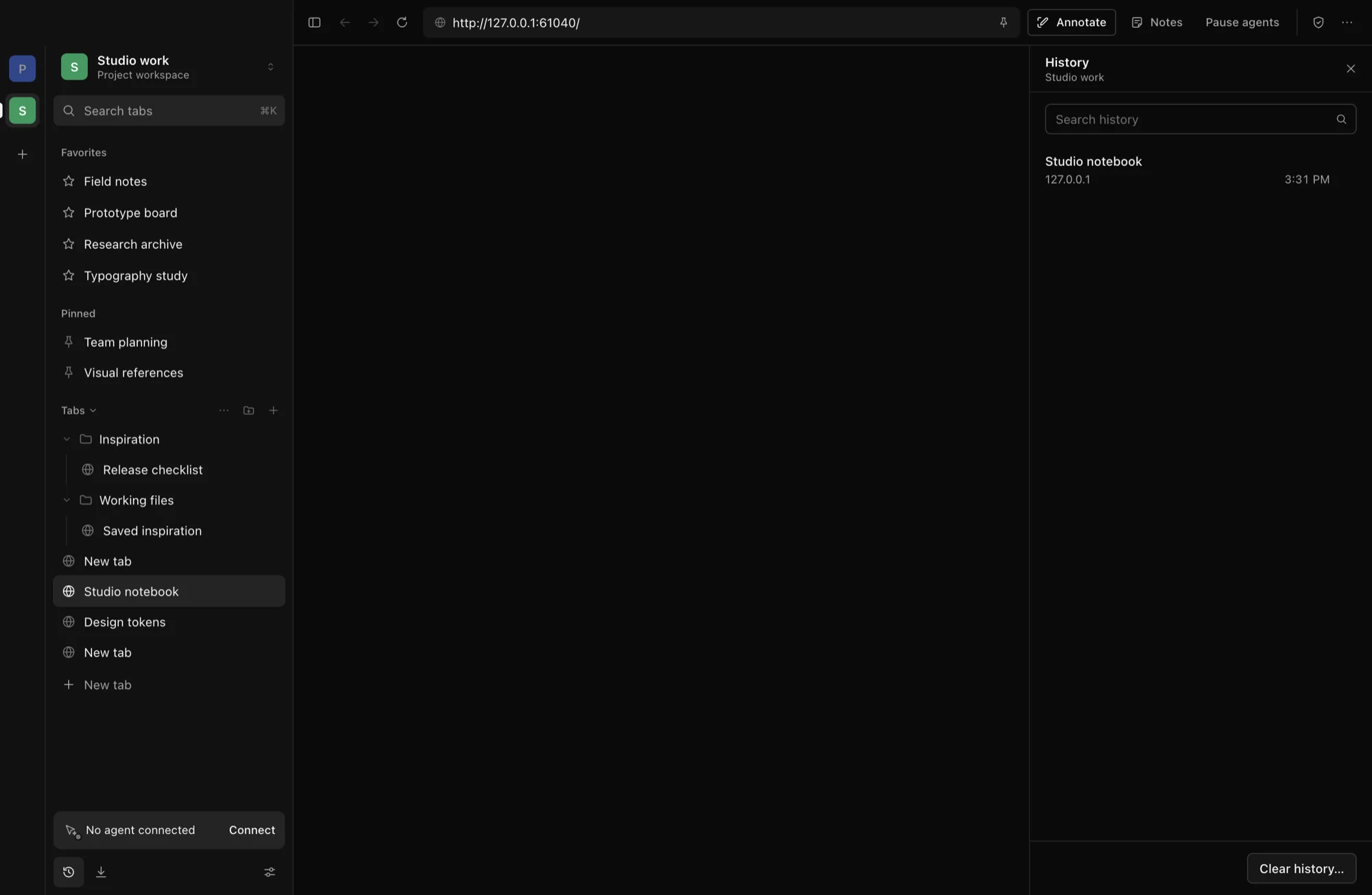
History and downloads per workspace
Visit history and download records are kept separately for each workspace, with search and a clear action.
Storage at a glance
See how much profile data and web cache each workspace is using.
Several windows
Open any workspace in its own window. Caddi remembers which workspaces were open where.
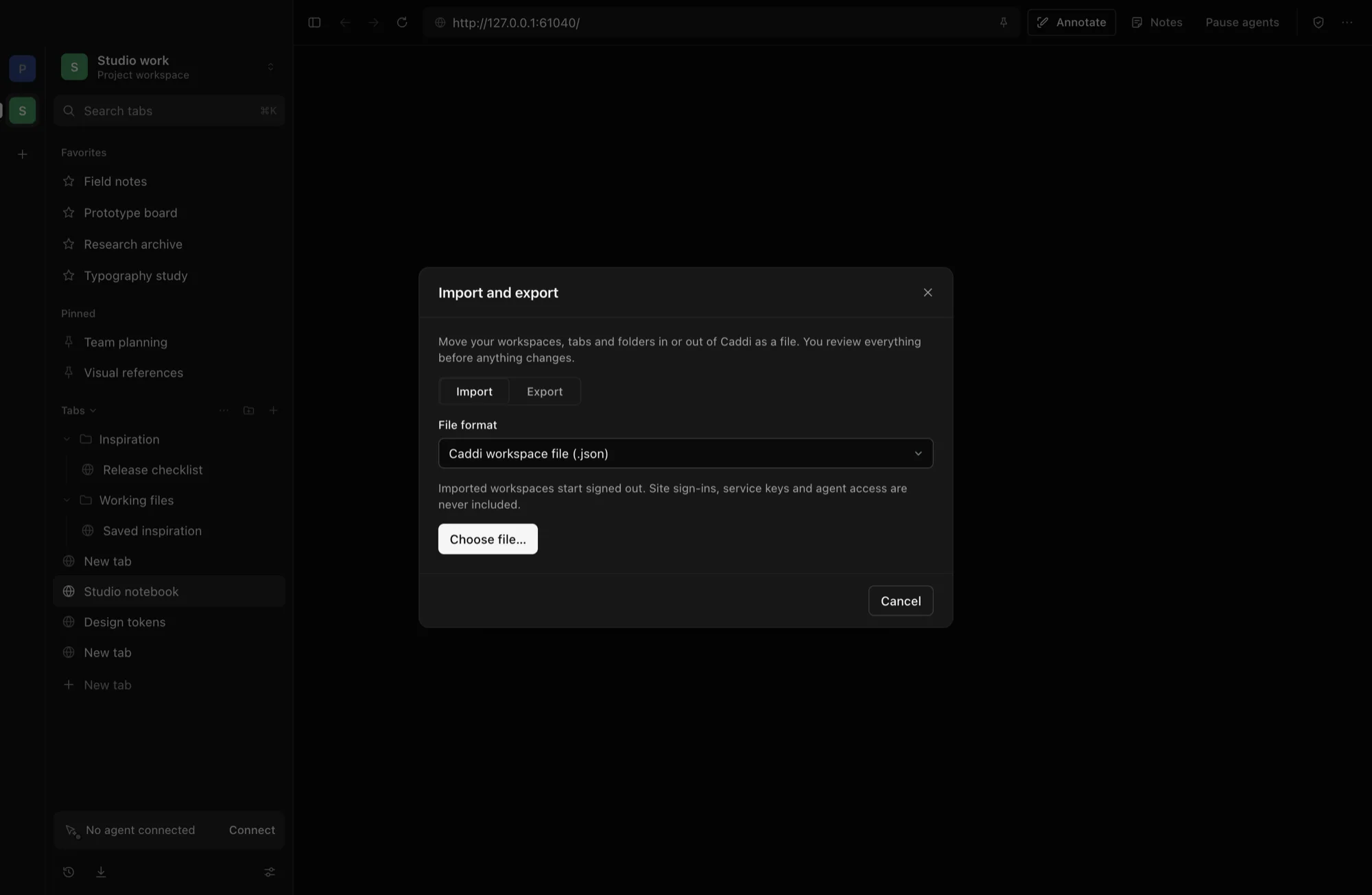
Import and export
Move workspaces, tabs and folders in or out as a file, and import bookmarks. You review everything before it is added. Sign-ins, keys and agent access are never included.
Checked, backed-up state
Your tab organization is saved with a checksum and a backup. A damaged file is never silently reset: Caddi asks before restoring.
08
The browser
The everyday parts, done carefully. Useful with no agent connected at all.
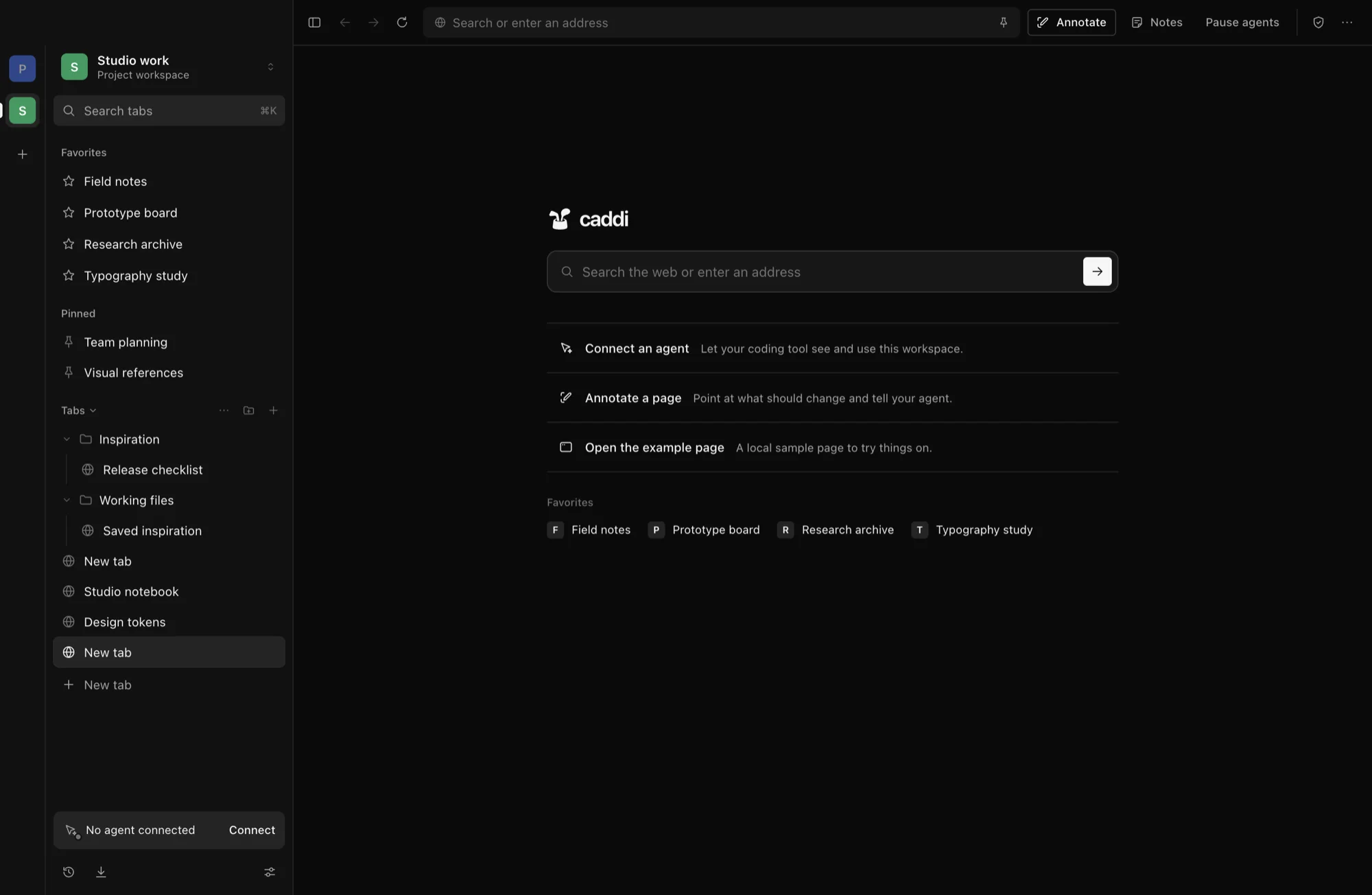
Vertical tabs
A sidebar that keeps tab titles readable, and you can hide it when you want the room back.
Groups and folders
Named, colored tab groups inside a workspace, and folders you can nest.
Pinned tabs and favorites
Keep the pages you return to at the top of the sidebar, out of the way of working tabs.
Command palette
Press ⌘K to search commands, tabs and workspaces from one field. Arrow keys to move, Return to open.
Split view
Put two tabs from the same workspace side by side.
Find, zoom, print
Find in page, page zoom from the page menu, print, and save the current page as a PDF.
Stop and error pages
Reload turns into Stop while a page loads. A site that cannot be found, reached or trusted shows a short message with Try again.
Links and right-click
Links that open a new tab do, a blocked pop-up or a mailto: link says so, and right-click offers copy, paste and link actions.
Reopen and preview
Reopen the last closed tab, or preview an address in a temporary page without adding a tab.
Light and dark
Two sharp themes that follow your Mac or stay where you set them. Transparency and contrast follow your accessibility settings.
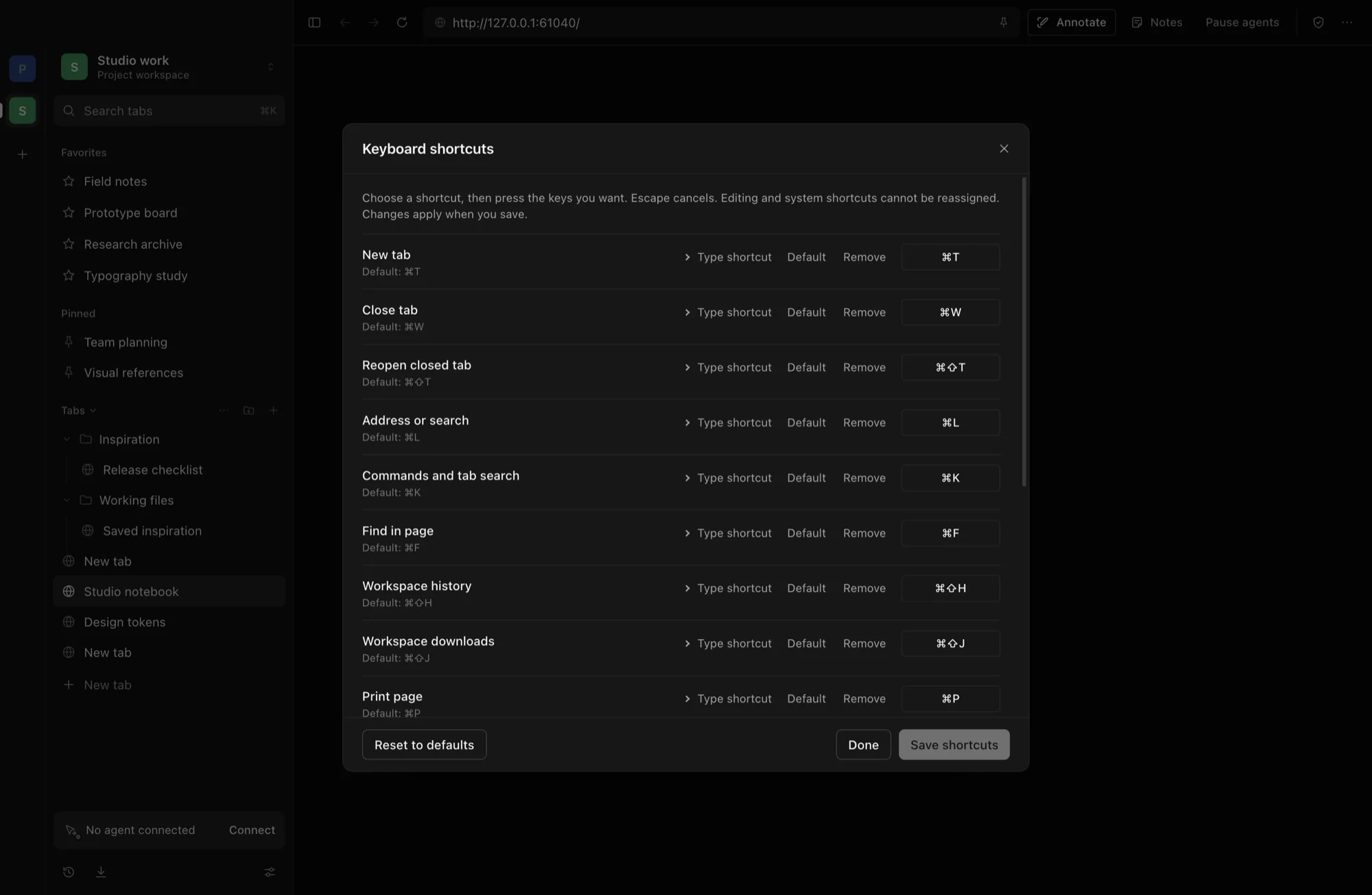
Your own shortcuts
Reassign the keyboard shortcut for most browser commands, or reset them all to the defaults.
Search
Type in the address field to search. Searches go to DuckDuckGo.
09
Connecting agents
A local MCP server, and a clear answer to “what can it touch?”
Connection steps and the MCP tool reference
Local MCP server
Any coding agent that can run a stdio MCP server can connect. It talks to Caddi over a local Unix socket in a private directory. Nothing listens on the network.
One-click setup
The Agents dialog lists the coding tools it finds on your Mac and connects one with a click. It adds only its own entry and keeps a backup.
Approve in one click
The coding tool shows a short code and Caddi shows the same one. If they match, press Allow: the current project workspace, view and control, the sites already open there, and no screenshots or saved logins. Change access shows every choice. A request waits ten minutes.
It asks for each new site
The agent can only see and act on pages from the sites it was given. When it tries to open another, Caddi asks you, “Claude Code wants to open caddi.build”, and allowing adds that site for the session.
View or control, and two extras
View lets an agent read pages and wait. Control adds the actions. Screenshots and the Vault are separate options, off by default.
A workspace of its own
Instead of sharing one of yours, let an agent create a single new, empty, isolated workspace for its task.
Sessions that end
A session lasts at most eight hours and lives in memory only. After a restart every agent must be approved again.
Service connectionsPreview
Read-only adapters for GitHub, Vercel and Resend exist and are tested, but cannot be used with real credentials until protected storage is finished.
10
Privacy and control
The parts that make it reasonable to let an agent near a browser.
The security model and its known limits
Pause agents
One toolbar button blocks all agent observation and control in the current workspace, and stops Live. Caddi waits for every observer to confirm it has stopped.
Paused when the Mac locks
Lock, sleep or switch user and every workspace is paused. After unlock you choose Continue, and agents need fresh leases.
Sensitive-field protection
Password, one-time-code, payment, token and similar fields are skipped. Agents cannot see them, click them, type into them or fill them.
Revoke at any time
Disconnect one agent from the Agents dialog and its requests fail from that moment, including any in flight.
Reviewed links
Links from other apps wait in a short queue until you choose the workspace they open in. They never open on their own.
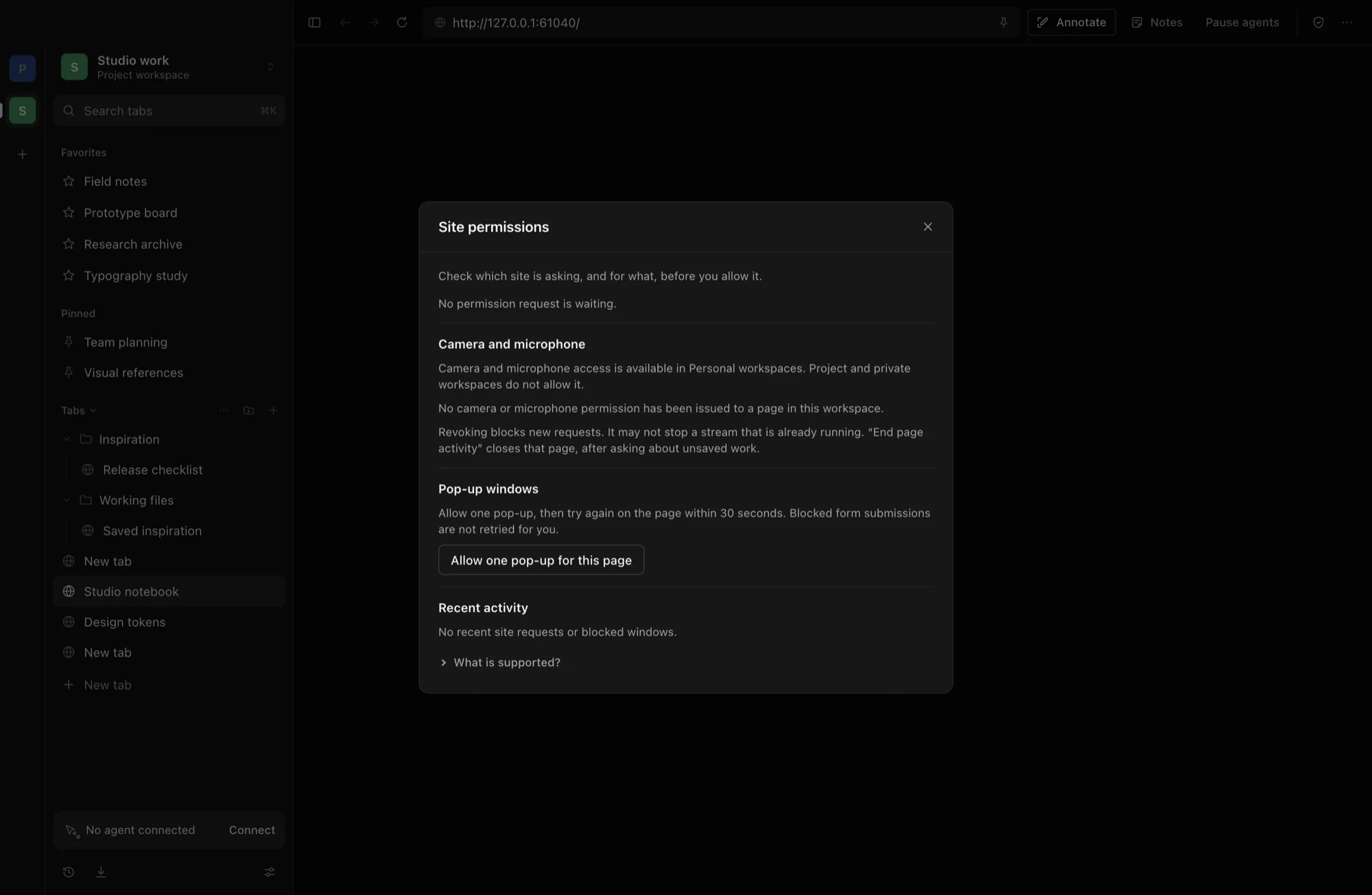
Permission prompts
Sites must ask before using notifications, camera or microphone. Everything else, including screen sharing and location, is denied.
Pop-ups blocked
Pop-ups that do not come from your click are blocked, with a notice. You can allow one for 30 seconds. Pop-up windows are outside agent access.
No account, no analytics
There is no Caddi account and no sync service, and the app contains no analytics or crash reporting. Your data stays in a folder on your Mac.
11
Not yet
Caddi is an early preview. These are not built, and the site does not pretend otherwise.
- Automatic updates
- Browser extensions
- Passkeys, password generation and sync
- Checking that a sign-in worked before offering to save it
- Service connections with real credentials
- Annotate notes that survive a restart
- Full screen video, PDFs and HTTP basic sign-in
- File upload and native drag and drop for agents
- Sync between machines
- Intel Macs, Windows and Linux